01 / OBS Studio
OBS Studio: How to Build Scenes and Switch Sources
OBS Studio — Organise opening, main, break and closing states with clearly named sources, accounting for edits that affect reused sources elsewhere.
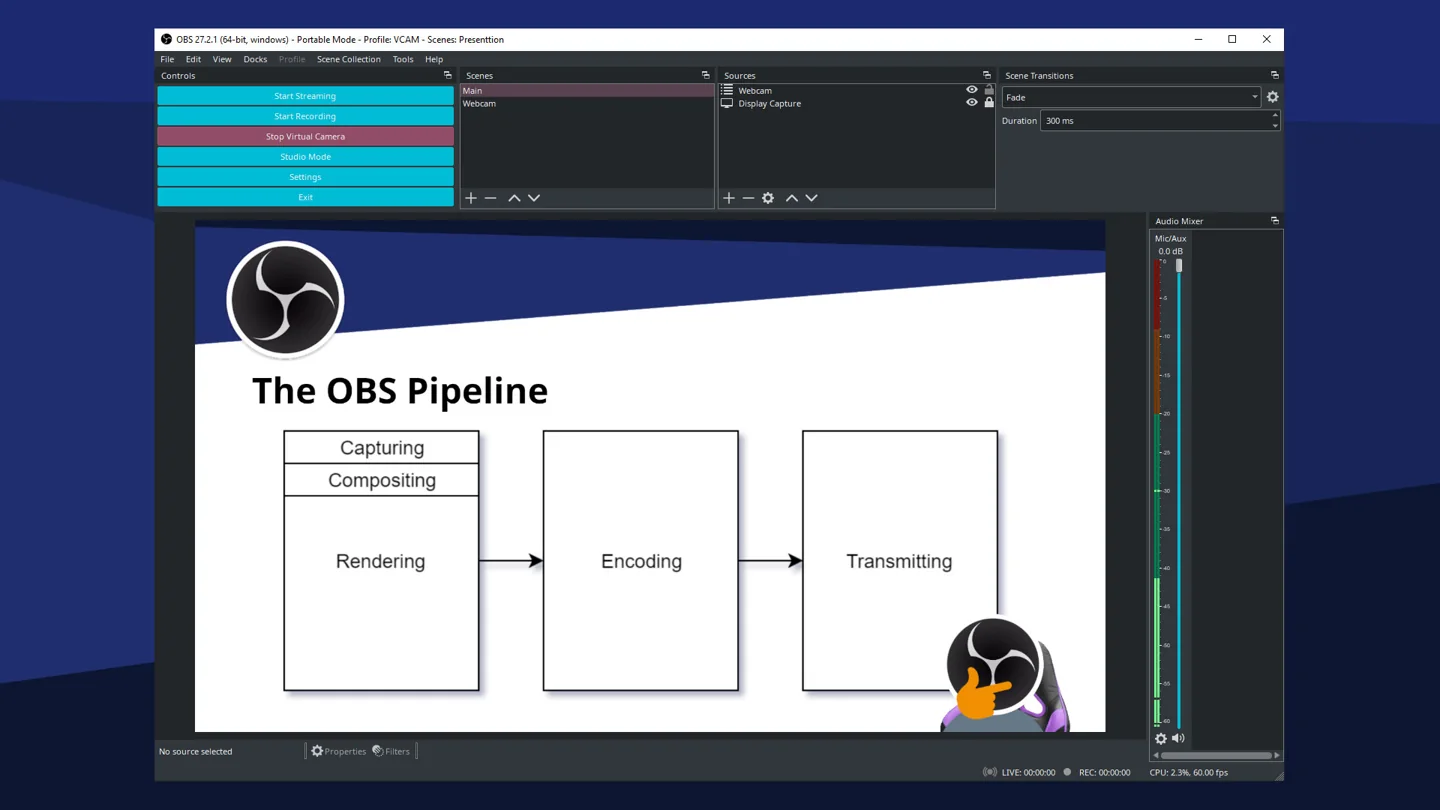
OBS Studio is free, open-source software for recording and live production, not a game. A scene contains sources such as a game capture, camera, image and microphone; OBS composites those sources, mixes audio and sends the result to a recording or streaming output.
A reading route
Treat a production as a sequence experienced by the audience and the next editor. Transitions, quiet moments and file contents deserve a real rehearsal.
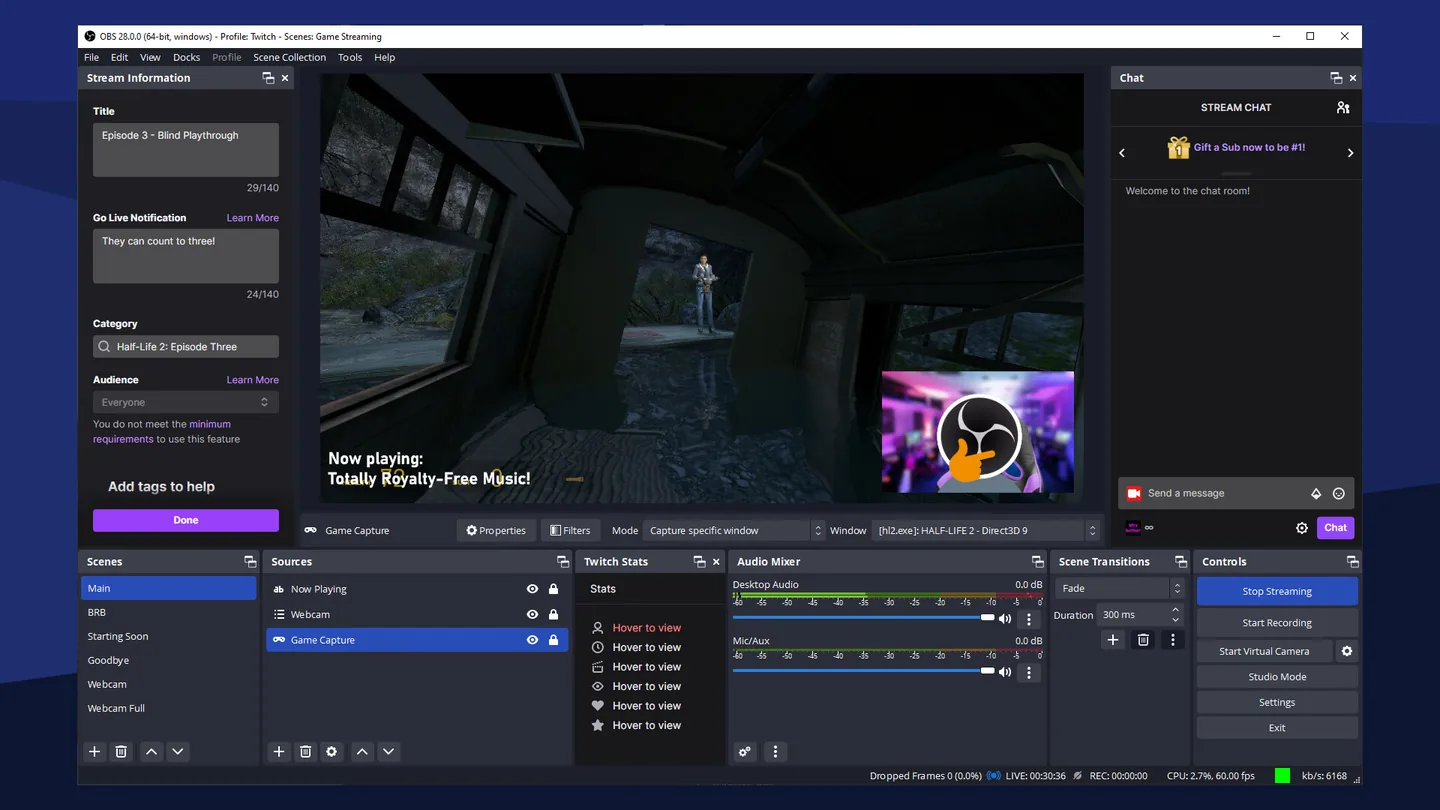
Turn a running order into scenes and fallbacks the operator can reach confidently.
Read the guideRecord issues by their place in the sequence so the next rehearsal tests a meaningful correction.
Read the guide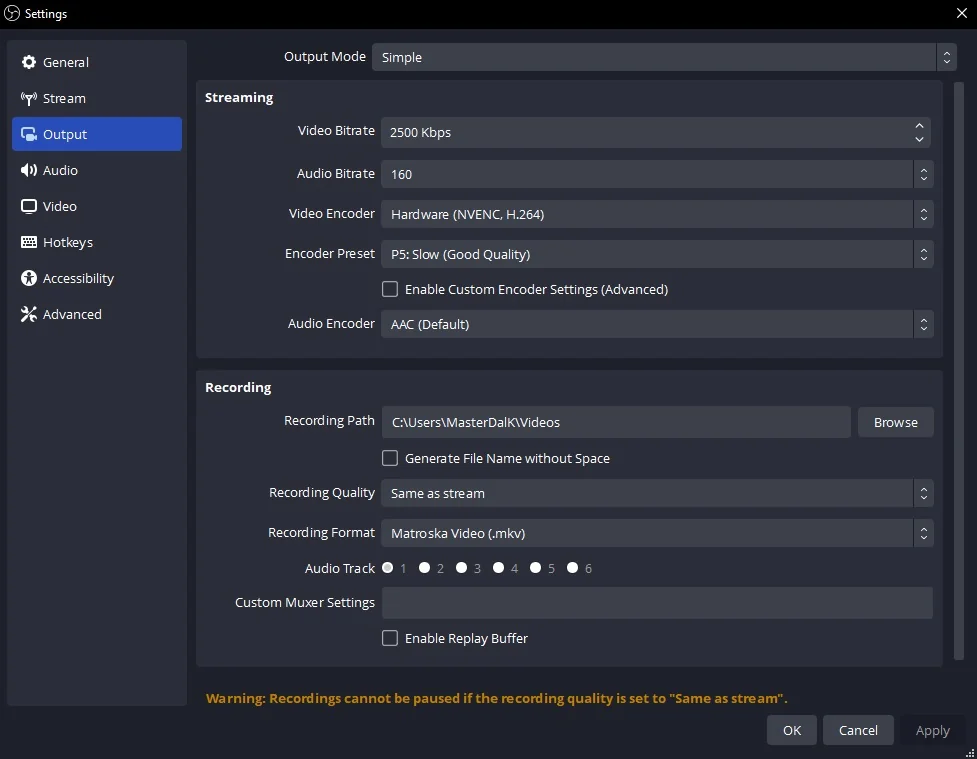
Check the sample in the receiving editor before promising an editable, correctly routed delivery.
Read the guideA creator’s notebook for deliberate scenes, clean audio, safe recordings, and confident transitions.
OBS Studio — Organise opening, main, break and closing states with clearly named sources, accounting for edits that affect reused sources elsewhere.
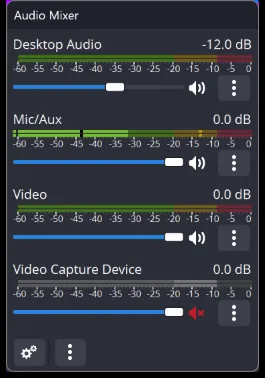
OBS Studio — Keep programme sound consistent across scenes by tracing microphones, media playback and monitoring before adding filters to an unexplained duplicate.
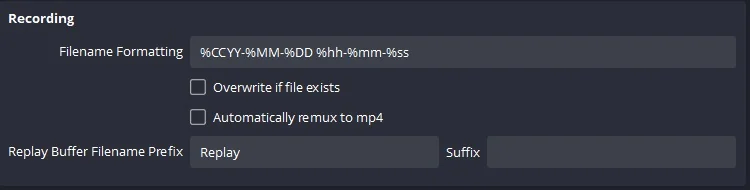
OBS Studio — Choose recording settings for the production’s later use, checking storage, audio routing and playback before a long take.
OBS Studio — Prepare the next composition in Preview and deliberately send it to Program, rehearsing the transition rather than assuming preview edits are live.
OBS Studio — Rehearse the opening, scene order, sound continuity and failure recovery as a programme, then review a recording from the viewer’s perspective.
OBS Studio — Rehearse the transitions a viewer will actually receive, including failures. A useful production plan covers the opening, scene changes, audio continuity and a safe holding scene when a source disappears.
OBS Studio — Prepare a usable editing handoff with the intended picture, separated audio where needed and a format the receiving editor can read.
Before your next session
A brief run can expose missing sources, wrong framing or an unintended audio state before the useful take. Keep the rehearsal proportional to the number of changes in the production.
Record the cue, expected state, observed state and the recovery used. Turn the finding into a specific check for the next rehearsal instead of a vague reminder to be more careful.
Let the editing and delivery requirements decide. Separate material when it provides useful control, then verify the chosen track layout in a sample so the handoff matches what the editor expects.
Studio Mode separates preparing a view from putting it on the program output, but shared sources can still affect what is live.
OBS Studio — Rehearse the transitions a viewer will actually receive, including failures. A useful production plan covers the opening, scene changes, audio continuity and a safe holding scene when a source disappears.
OBS Studio — Organise opening, main, break and closing states with clearly named sources, accounting for edits that affect reused sources elsewhere.
OBS Studio — Prepare a usable editing handoff with the intended picture, separated audio where needed and a format the receiving editor can read.
Choose a topic for the problem you have now, then return to the complete guide when you need the connected workflow.
Produce a programme: scene changes, sound, recording and recovery
OBS Studio can run a live programme as well as make an individual recording. The production desk connects preview, transitions, audio and recovery so that the operator can prepare what the audience will receive before changing the output.
Producing a programme means preparing the next picture while the current one remains on air. Studio Mode separates preview from programme so that a scene can be inspected before transition. Check source visibility and layout in that preparation step. The transition itself should be the end of a prepared decision rather than the moment when a missing source is first discovered.
Plan sound changes alongside visual changes. A scene transition does not answer which microphone, desktop source or monitoring route should be heard next. Inspect the mix and track assignments for the actual programme, then verify the result with a short rehearsal. This is especially useful when an operator can hear a monitored source that the audience or recording is not receiving.
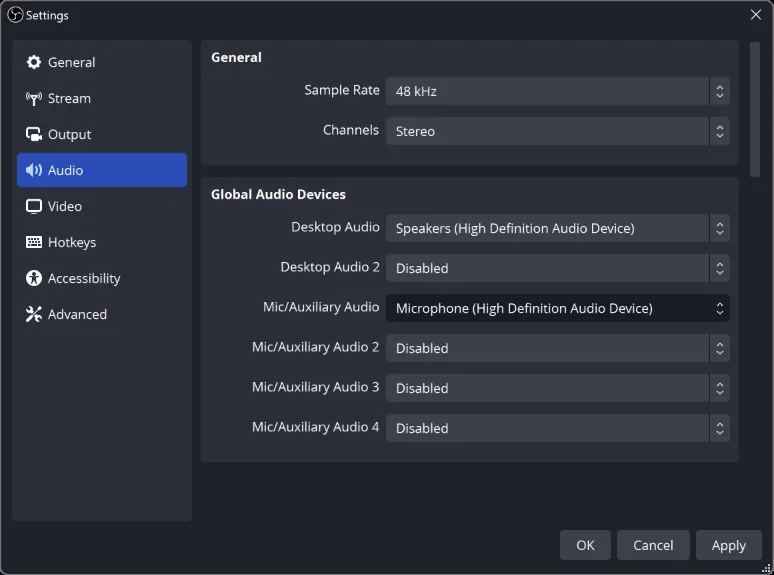
Prepare recovery before a live change is necessary. Keep a usable scene, known output configuration and relevant exports available so that a fault does not require rebuilding the show under pressure. When a problem appears, separate what the preview shows from what the programme and saved recording contain. Those observations help identify the failed stage and preserve the parts of the production that still work.
Keep the recording useful: track routing, storage and editor handoff →Practical decisions
Find the guide for your situation
Walk through the opening scene, microphone state and first transition in order. Include who triggers each change and what happens if a guest or source is late, so the plan covers a realistic interruption.
Explore this guideAgree on framing, audio separation and file delivery before recording. Test a representative sample in the actual editing workflow; a file that plays successfully can still be inconvenient for the intended handoff.
Explore this guideRehearse the next scene while watching what is currently live. Confirm sources and audio together before the transition, because a visually ready scene can still contain the wrong microphone state or an outdated media source.
Explore this guide| Stage | Symptom | First check |
|---|---|---|
| Source | Wrong image or missing capture | Source type, permissions and selected device |
| Audio | Silence, duplication or clipping | Device routing, meters and a saved test |
| Rendering | Scene misses rendered frames | GPU load and scene complexity |
| Encoding | Encoder cannot keep up | Supported encoder and output workload |
| Network | Dropped streaming frames | Connection and service requirements |
Dated developer updates and clearly labelled editorial perspectives.
Write your setup, one change and what you observed. This note is saved only in this browser.