Rehearse the awkward transitions, not only the opening
Worked example: adapt the sequence to your current version and activity.
Write a short cue sequence
Include an opening scene, a speaker or capture scene, a media clip and a holding scene that is safe to leave on air. For each cue, write the trigger, intended visual and intended sound. In Studio Mode, confirm what is in Preview and what is in Program before transitioning. A media clip that appears in Preview may have playback or audio behaviour that still needs a complete live-output test.
Insert one recoverable fault
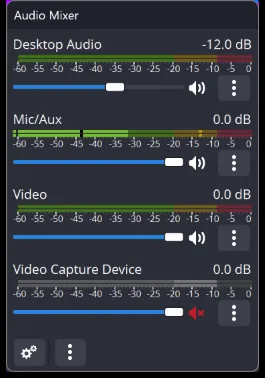
During a private rehearsal, practise a missing window or a clip that is not ready. Switch to the holding scene, restore the source and return through a deliberate cue. Watch whether a microphone or reused audio source remains active during the holding scene. Do not test recovery by deleting the only copy of a production file; simulate unavailability in a reversible way.
Turn the log into the next rehearsal
Record cue, timestamp, expected result and observed fault. Label the stage: source, scene, audio, transition or output. After fixing it, repeat from the cue before the failure so you include the original lead-in. A successful isolated click is not enough if the fault depended on the preceding scene or the clip’s previous playback state.
Before you finish
- Keep one holding scene ready throughout rehearsal.
- Inspect audio as well as the transition image.
- Repeat from before the original trigger after a fix.
Read the underlying documentation
A situation to work through
Start here
Run one complete rehearsal including the quiet moments and transitions that a highlight test would skip.
Make the decision
Log issues by time and stage so missing media, wrong levels and output faults remain distinguishable.
Check the result
Fix the most disruptive issue, then repeat the affected sequence from before its trigger.
Record the intended cue, the action taken and the audience-facing result during a rehearsal. Note issues at the moment they occur, such as a delayed media start or an unexpected microphone, rather than only summarizing that the show felt rough. After a correction, repeat that transition in context. Keep unresolved items distinct from verified fixes so the next rehearsal begins with a meaningful checklist.
Preview the change before it reaches the audience
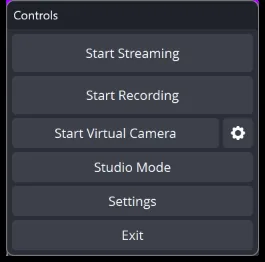
Studio Mode provides a preview/program workflow for preparing a transition. Practise selecting the next scene and checking its capture target before making it live. Confirm what happens to audio as scenes change, especially when a source is reused. A smooth visual transition is not a complete success if it accidentally reveals a private window or changes the listening balance unexpectedly.
A recording handoff: files, remuxing and project context
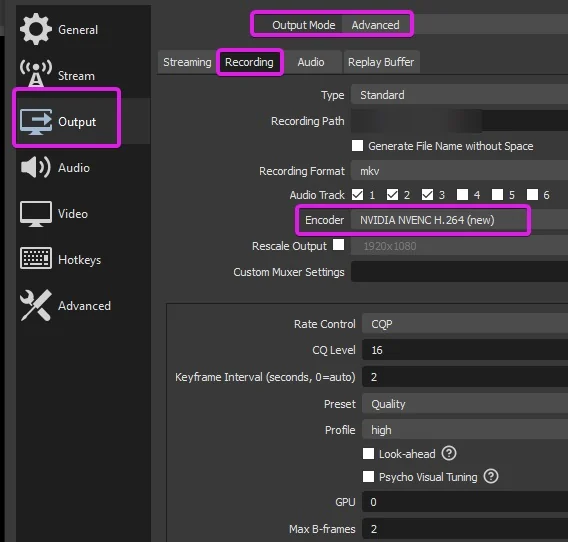
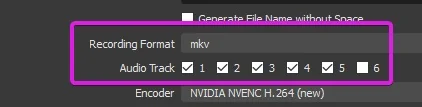
If the editor needs MP4 and the recording was saved in a compatible MKV format, OBS’s remux operation changes the container without a complete video re-encode. That is different from converting an unsupported codec. Keep the original recording until the handoff is checked. Images, videos and fonts referenced by a scene collection also need their own backup if the production setup is being moved to another machine.
Images and source context