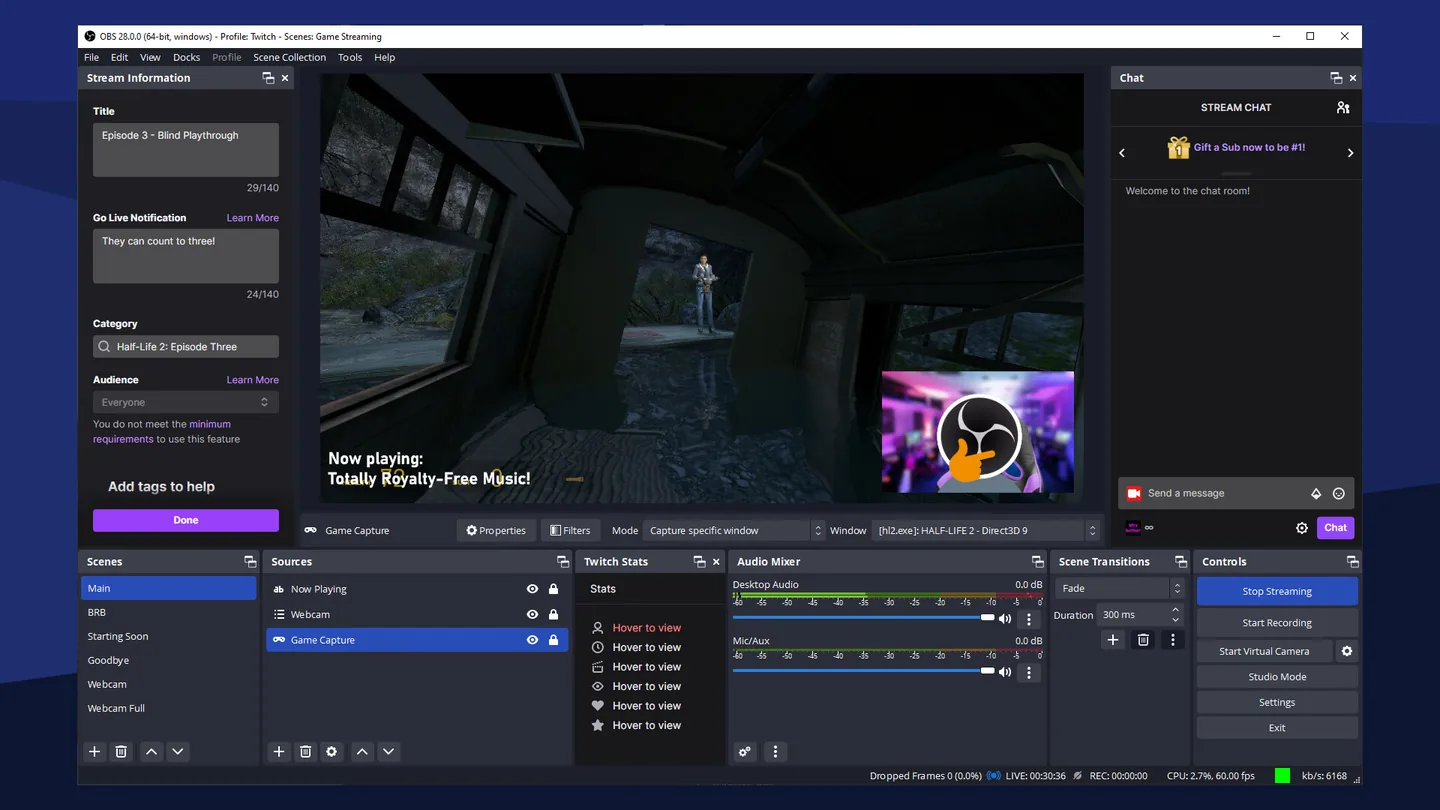
A situation to work through
Start here
Make a short running order listing the opening, main segment, transitions and ending you will actually perform.
Make the decision
Rehearse source availability and audio behavior at each transition rather than checking static scenes alone.
Check the result
Keep a simple fallback scene and know how to reach it without exposing private desktop content.
Prepare a running order with the scenes, media and audio needed at each transition. Test the opening and closing as well as the main segment, including what the audience sees if a source is unavailable. Keep a simple fallback scene within reach. A technically successful stream can still be a poor show when an operator has to discover source names or mute controls during the live transition.
How do you use OBS Studio Mode before going live?
Prepare the next scene in Preview and verify its sources before transitioning it to Program. Rehearse the actual transition and audio path with a short local recording. Previewing a scene does not by itself guarantee that all audio is isolated from the live output.
Build scenes around programme states
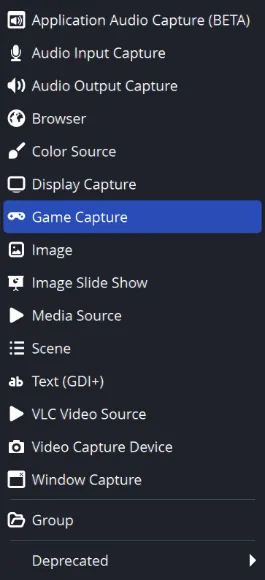
Prepare distinct opening, main content, break and closing states as needed. Name their sources clearly and reuse an existing source when shared settings are intentional. Check which settings are shared before editing a source used in several scenes.
Rehearse in Studio Mode
Use Preview to prepare the next composition, then transition it to Program deliberately. Verify the outgoing programme rather than assuming every preview change is already live. Check hotkeys for accidental conflicts with the game or presentation you will operate.
Keep voice continuity through scene changes
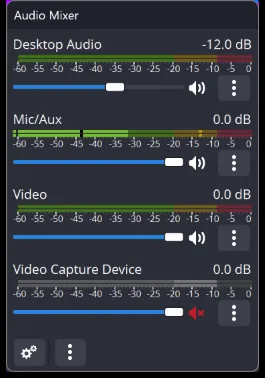
Speak while moving through the actual running order and watch the relevant meters. Media sources and scene-specific audio can start, stop or overlap during transitions. Confirm that a break scene does not unexpectedly remove the microphone or duplicate a music source.
Practise a source failure
Stop or hide the main capture during a local rehearsal and switch to the prepared holding scene. Confirm what remains audible, how you restore the source and which hotkey returns to the programme. Record the rehearsal and play it back to inspect transitions from the viewer’s perspective.
Preview, Program, transitions and a coherent show
Studio Mode separates Preview from Program. You can prepare a scene on the preview side while the audience continues to see the programme output, then apply a transition. A scene being selected for preparation is not necessarily the scene currently on air.
Design a start, main content, break and ending sequence, and check what each scene does to audio. A camera hidden visually can still have an active microphone if the routing remains enabled. Use clear names and hotkeys you can operate without accidentally stopping the recording. Watch one complete rehearsal file to verify that the viewer receives the intended order, including the final transition and sound.
Streaming output and three different frame-loss counters
Connect the intended service and use its current output requirements rather than assuming one bitrate works everywhere. Available upload bandwidth needs margin beyond the configured stream bitrate. The local preview can look smooth while the outgoing connection is losing data.
When the result is not what you expect
| What you see | What to check | What to do next |
|---|---|---|
| A corrected preview never reaches viewers | Preview was not transitioned to Program. | Check Studio Mode’s outgoing programme state. |
| Music doubles after a transition | Two active sources may output the same content. | Inspect source reuse and scene-specific playback. |
| A capture failure exposes an empty layout | No holding state has been rehearsed. | Prepare and test a simple fallback scene and return path. |
Images and source context