A situation to work through
Start here
Rehearse a normal speaking section, a louder moment and the intended program sound before choosing processing.
Make the decision
Listen for intelligibility, clipping and unwanted room sound separately instead of stacking filters until the meter looks calm.
Check the result
Keep a listening comparison at a similar playback level so louder processing does not automatically sound preferable.
Rehearse the loudest expected speech and the quietest useful content, listening to the resulting file on headphones. Watch for distortion and sudden differences between sources before deciding which filters are necessary. Keep the unprocessed comparison available. A production mix should make the intended content intelligible; meters that merely look active cannot reveal whether music masks the speaker or monitoring introduces a distracting return.
List what should be heard
Name the voice, application sound and any deliberate background audio before adding filters. Capture each source intentionally and watch for the same signal arriving through two paths. An echo can come from duplicate capture or monitoring rather than the microphone itself. Close unrelated playback and make a short sample in the environment you will actually use.
Devices, gain, monitoring and separate tracks
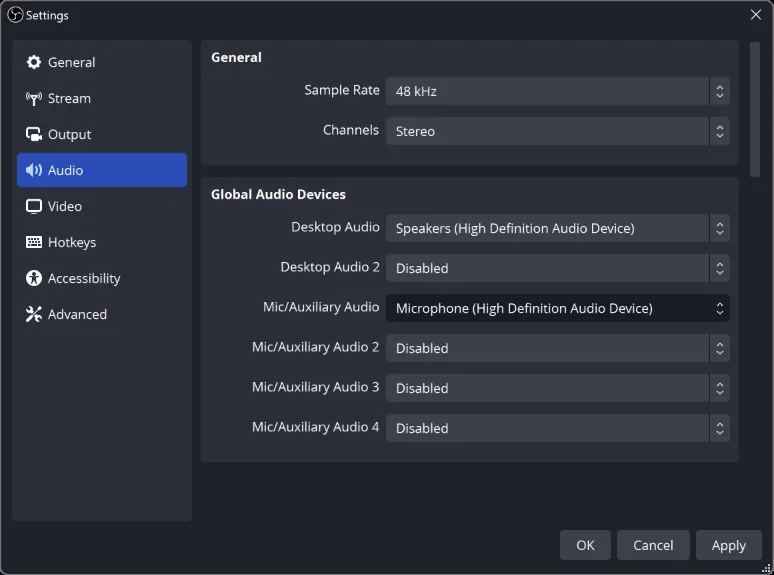
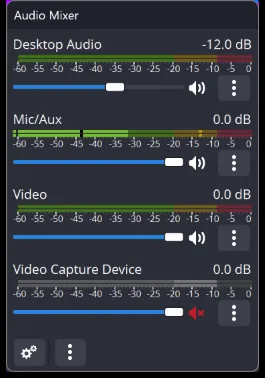
Select the intended microphone and desktop or application-audio input, then watch the correct meter. Clipping is a gain problem, while silence can be a wrong-device, mute, track or capture problem. Filters such as noise suppression, a compressor or limiter solve different issues and cannot repair every signal by being enabled together.
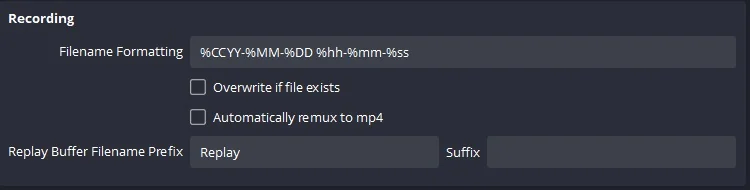
Monitoring sends audio to a listening device and is separate from output routing. Feeding a monitored signal back into a captured device can create an echo loop. For recording, route sources to the tracks you actually enable in Output settings, and check those tracks in the editing software. A stream may use one mixed track while the recording keeps microphone and game on separate tracks.
Images and source context