A situation to work through
Start here
Build scenes around actual program moments rather than separate layouts with no rehearsed transition between them.
Make the decision
Check source reuse, overlay order and microphone behavior while moving through the planned show sequence.
Check the result
Remove a decorative element if it obstructs essential information or creates an unmanageable live operation.
Design scene changes around the viewer's attention. Keep recurring elements consistent and verify that the next scene contains the correct audio as well as the intended picture. Use clear names that describe the live task rather than an unexplained numbering scheme. Rehearse transitions between the actual neighbouring scenes, because a composition that looks good alone may reveal an abrupt size or sound change in sequence.
Check layers and reuse deliberately
Sources overlap according to their ordering. Verify the result at the output size so that a foreground panel does not hide the important part of an application. Reusing an existing source and creating a separate source have different maintenance consequences. Use the current source controls deliberately when the same element appears in several scenes.
Preview, Program, transitions and a coherent show
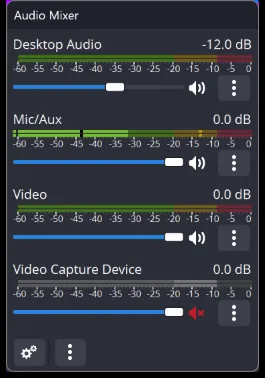
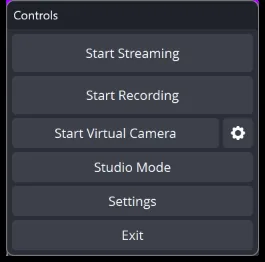
Design a start, main content, break and ending sequence, and check what each scene does to audio. A camera hidden visually can still have an active microphone if the routing remains enabled. Use clear names and hotkeys you can operate without accidentally stopping the recording. Watch one complete rehearsal file to verify that the viewer receives the intended order, including the final transition and sound.
Scenes, source order, transforms and capture type
A scene is a composition; a source is one input in it. Source order determines which visual item covers another, so a full-screen image above a game capture can hide the game even while the capture itself works. Transform controls size and position, while cropping removes an unwanted part of a source. Locking a source helps avoid accidental moves during production.
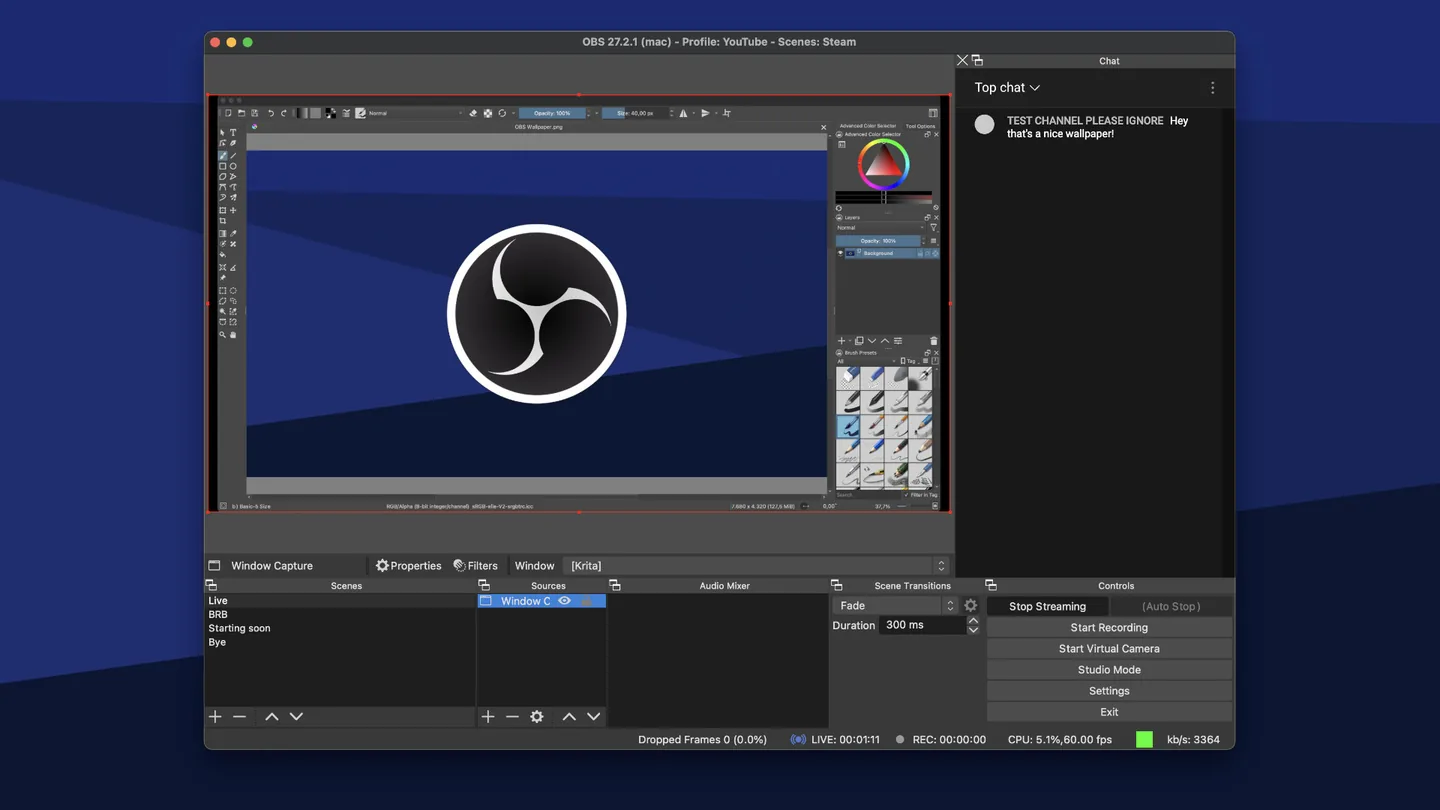
Reuse a source when several scenes should share the same device and settings, and create a separate source only when you need independent behaviour. A camera used through multiple incompatible device instances can cause conflicts. Keep scene names tied to visible programme states such as Starting, Gameplay, Break and Ending rather than an unexplained sequence of copied defaults.
Images and source context